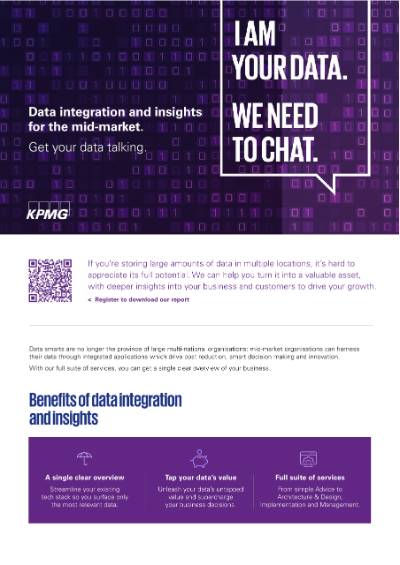
When your data's disconnected, it's hard to appreciate its full potential
KPMG can help you make sense of it, and turn it into a valuable asset, with deeper insights on your business and customers, to help you grow.
We can simply give you advice on which data systems to build.
Or we can also do the data architecture and design for you.
And we’re more than capable of handling the implementation. As well as the ongoing management of your new data systems.
Because when you connect your data, you’ll know how to grow.
And how you grow matters.
Benefits of data integration and insights

A single clear overview
Streamline your existing tech stack so you surface only the most relevant data.

Tap your data's value
Unleash your data’s untapped value and supercharge your business decisions.

Full suite of services
From simple Advice to Architecture & Design, Implementation and Management.
Our data integration and insights services
-
Advice If you simply want advice on which data systems to build.
We’ll help you reimagine your core data processes and integration needs, to deliver a best-practice solution that provides valuable insights and gives you a competitive edge.
Services include:
- Evaluate current state
- Co-Develop Data, Integration, Insight Strategy
- Design Data & Tech Integration Roadmap (Blue Print)
- Legacy Modernisation
- Identify Automation Opportunity
- Tech Enablement / Partner Selection
- Program Governance & Oversight (TAC/CAB)
- Best Practice Frameworks, Data Policies, Security, Regulatory
- CD/CI Program Management
- Integration Strategy
- Insight Strategy
- Governance
-
Architecture & Design When you also want the data systems built for you.
We’ll take all your existing initiatives, capabilities and investments – then align your data across your entire technology landscape, for a robust and fully integrated solution.
Services include:
- Target Architecture: Vendor platform selection
- Integration Platform Capabilities review and suitability to existing application landscape
- Integration Patterns and Methods
- Data Integration Strategy
- Architecture governance and adherence to business strategy
- Enterprise Monitoring Requirements and fitment
- Review designs against agreed patterns
-
Implementation If you’d then like those data systems put in place.
With consideration of your specific industry, we’ll either help you augment a client team or deliver the entire integration stream using enterprise-ready patterns and building blocks.
Services include:
- Process integration for legacy to cloud – resolving connection pain points
- API development
- Cloud integration and orchestration
- API gateway implementation
- Data connectors for legacy and cloud
- Data platform integration for insights and automation
-
Management When you also want your new data systems managed for you.
We can even be your 24/7 data managers, tapping those valuable insights for you, with an eagle-eye for spotting new opportunities and ways forward for your business.
Services include:
- Complete managed secure platform with legacy connectors to support hybrid models
- Low cost to serve – delivering data insights to the business
- Simple entry to cloud integration
- Connected enterprise with KPMG managed components/building blocks
- Roadmap of extensions to cloud connections and automation
- Incident management, monitoring and tracking
Get your data talking
Give your data a voice. It can tell you how to grow.
If you're a mid market organisation, we can help.
Connect with us

Let's talk
Just leave us your details below and we will be in touch to discuss how we can help get your data talking, so your business can grow.
Further reading and insights

- Cyber safe: Protecting local councils’ data from cyber attacks
- Data and Digital Transformation in the Mid Market Report 2021
- Realise the value of your data
- Realise business efficiency through integration
- Realise insights through informed business decisions
- Realise your digital business
- Cyber security for the mid market
- Future of local government